

Worked example
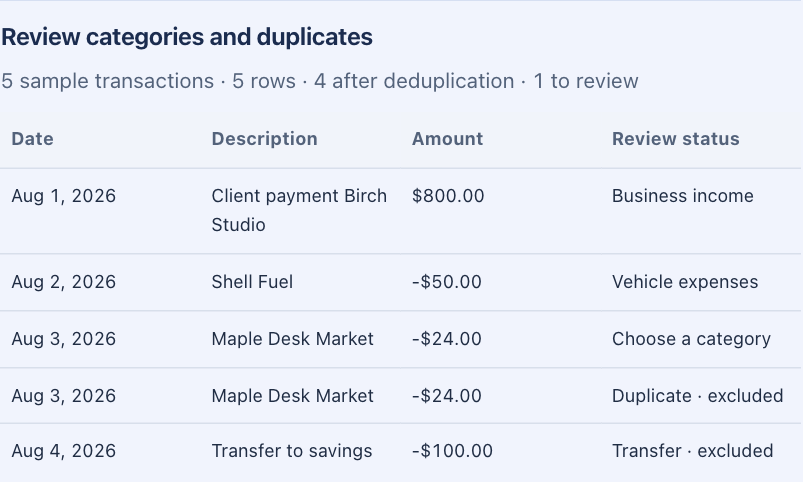
The example has five bank rows. One merchant needs a category, one row duplicates an earlier transaction and one is a transfer between accounts.
Walkthrough
-
Map the CSV columns
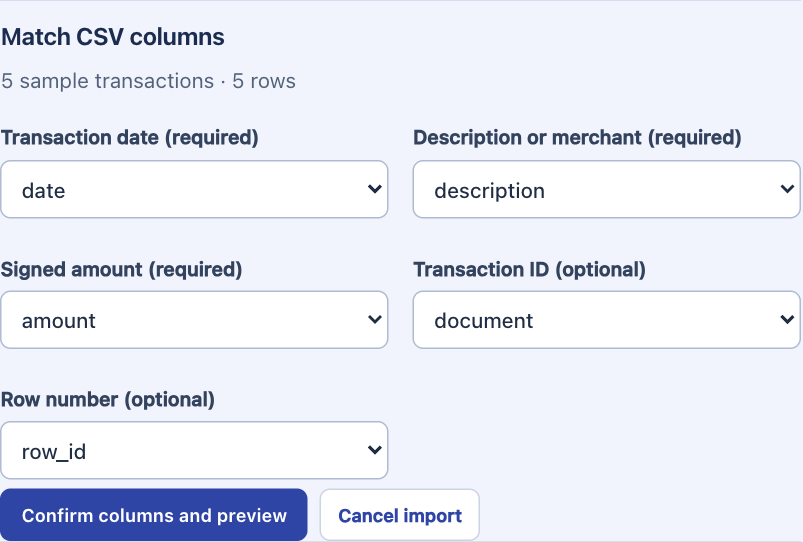
Select Try 5 sample transactions or choose a CSV from your device. Match the date, description, and signed amount to your column headers. Add a transaction ID or row number if available, then select Confirm columns and preview.
 Open full-size image ↗
For each required field, choose the header from your own CSV that contains those values. -
Review the exceptions
Read the Review status column. In this sample, one Maple Desk Market charge needs a category, its duplicate is excluded, and the transfer to savings is excluded. Choose a category for the charge, then select Apply category.
 Open full-size image ↗
The review list shows why a row is excluded or needs a category. -
Confirm the batch
When the flagged rows are resolved, select Confirm and recalculate. Compare the income and categorized expense totals with your records. The free trial covers up to 50 transactions.
This guide opens in its own tab. Close it to keep working in the tab where you started; your entries stay there.