

Worked example
You’re preparing business expenses in a workspace with an active pass. The same vehicle appears in your expense records and your trip log.
Walkthrough
-
Open business expenses and mileage
Confirm your transactions in Review transactions, then open Business expenses & mileage. Select Load a 100-mile sample or Choose a local mileage CSV.
-
Review the mileage draft
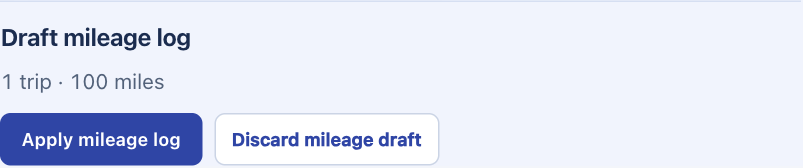
The sample draft contains one trip totaling 100 miles. Check the trip count and distance, then select Apply mileage log to use it for this batch.
 Open full-size image ↗
You can inspect the draft before adding the trips to the workspace. -
Choose a vehicle expense method
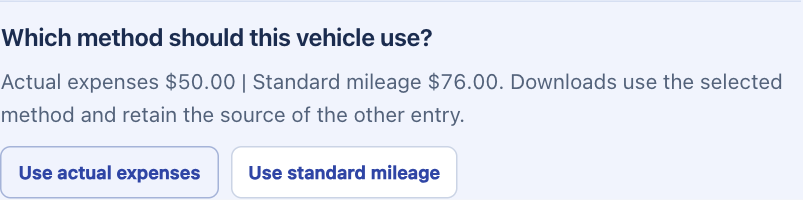
The sample shows $50 of actual expenses and $76 of standard mileage. Select Use actual expenses or Use standard mileage for this vehicle, then check the updated net profit in Business totals.
 Open full-size image ↗
Both amounts are visible when you choose which method the export will use.
This guide opens in its own tab. Close it to keep working in the tab where you started; your entries stay there.